

⌘, on Mac. Fonts, theme, integrations, shortcuts, and app info — all in one place.
Your Editor, Your Way
Set up your writing environment the way you like it. The Editor tab shows your writing preferences on the left and appearance settings on the right.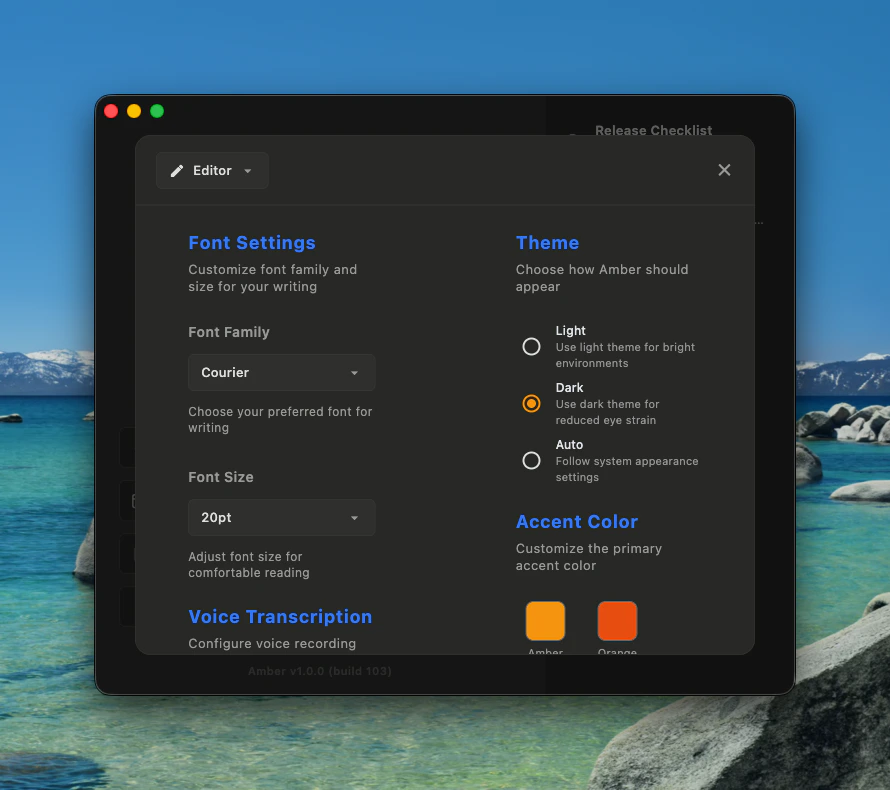
Font
Choose any font installed on your Mac from the dropdown. Pick a size between 10pt and 24pt — the default is 16pt.Transcription Language
If you use voice recording, choose your transcription language here. Amber supports 25 languages including English, Spanish, French, German, Italian, Portuguese, Russian, Japanese, Korean, Chinese, Arabic, Hindi, and more. The default is English.Accent Color
Make Amber feel like yours. Choose from six presets: Amber, Orange, Blue, Green, Red, and Purple.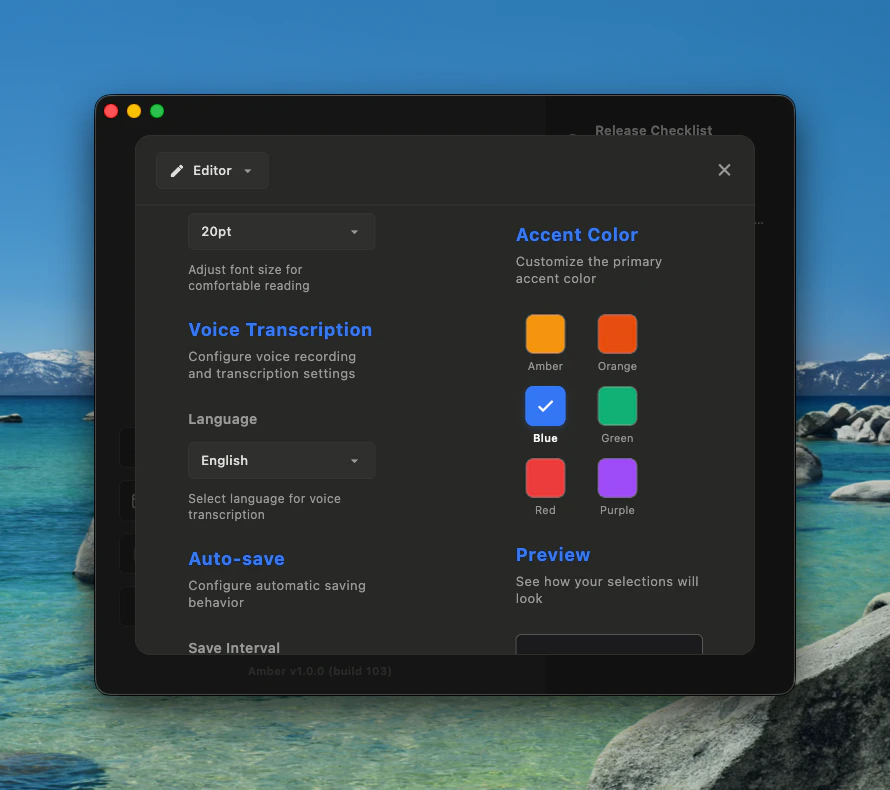
Auto-save and Preview
Choose how often Amber saves your work in the background: every 5, 10, or 30 seconds. The default is every 10 seconds. Learn more in the auto-save guide. The live preview on the right updates as you change your theme and accent color, so you can see exactly how your choice looks before you move on.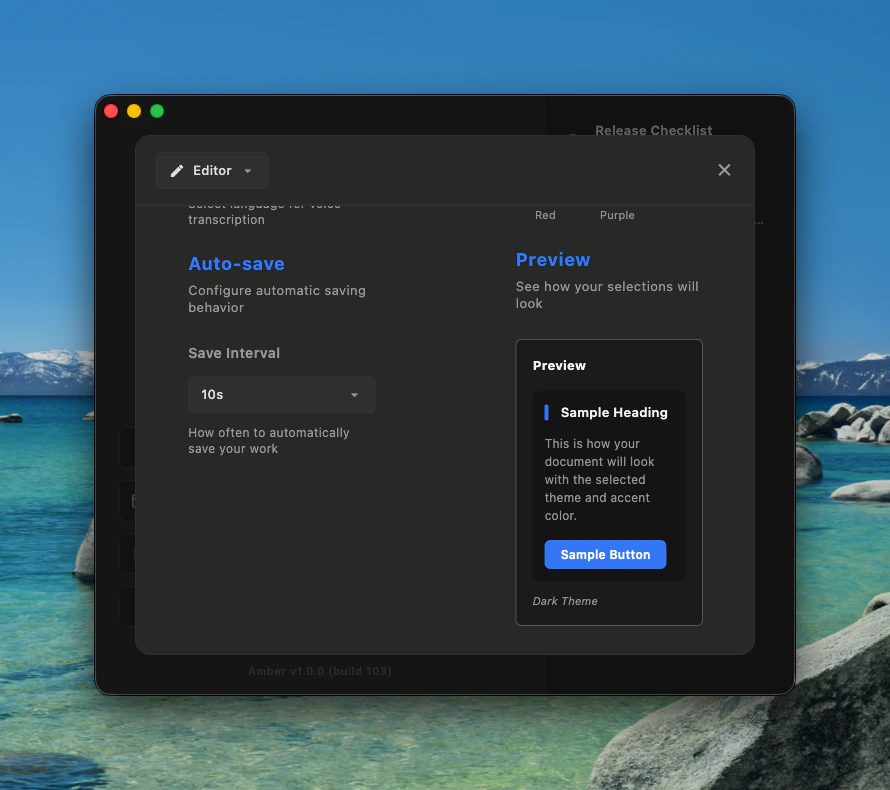
Make It Look Right
Appearance settings sit alongside your editor settings in the same tab.Theme
Pick the look that suits your environment:- Light — bright background for well-lit spaces
- Dark — easier on the eyes in low light
- Auto — follows your Mac system setting (default)
Connect Your Tools
The Integrations tab lets you connect Amber to external tools. There are two sections: local (stays on your Mac) and cloud (connects to external services).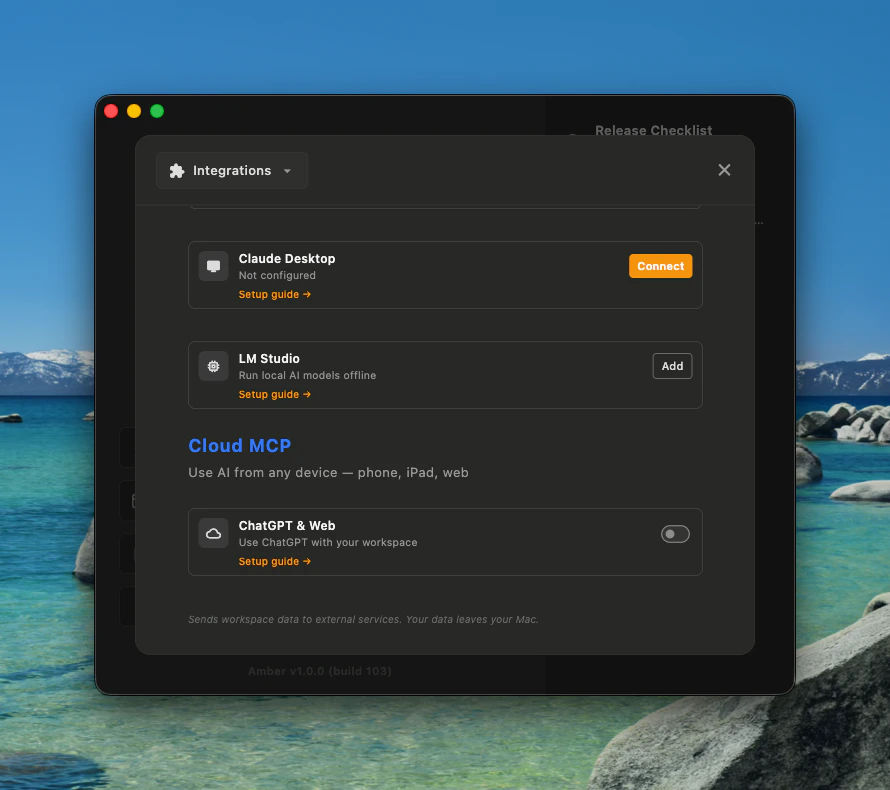
Local Integrations
These run entirely on your machine. Your data never leaves your Mac. Local MCP Server Toggle this on to let tools like Claude Desktop and LM Studio access your workspace. Runs onlocalhost:9080.
Claude Desktop
Connect Amber to Claude Desktop for a richer writing assistant experience.
1
Install Claude Desktop
If you do not have it yet, click “Get app” to download it.
2
Connect
Click “Connect” to link Amber to Claude Desktop. This installs the Amber extension automatically.
3
Disconnect
Click “Disconnect” any time to remove the connection.
Cloud Integrations
These connect to external services. Your workspace data leaves your Mac when enabled.Cloud integrations send workspace data to external services. Only enable this if you are comfortable with your data leaving your device.
Every Shortcut at a Glance
The Shortcuts tab shows all keyboard shortcuts in one searchable list. Type in the search bar to find what you need.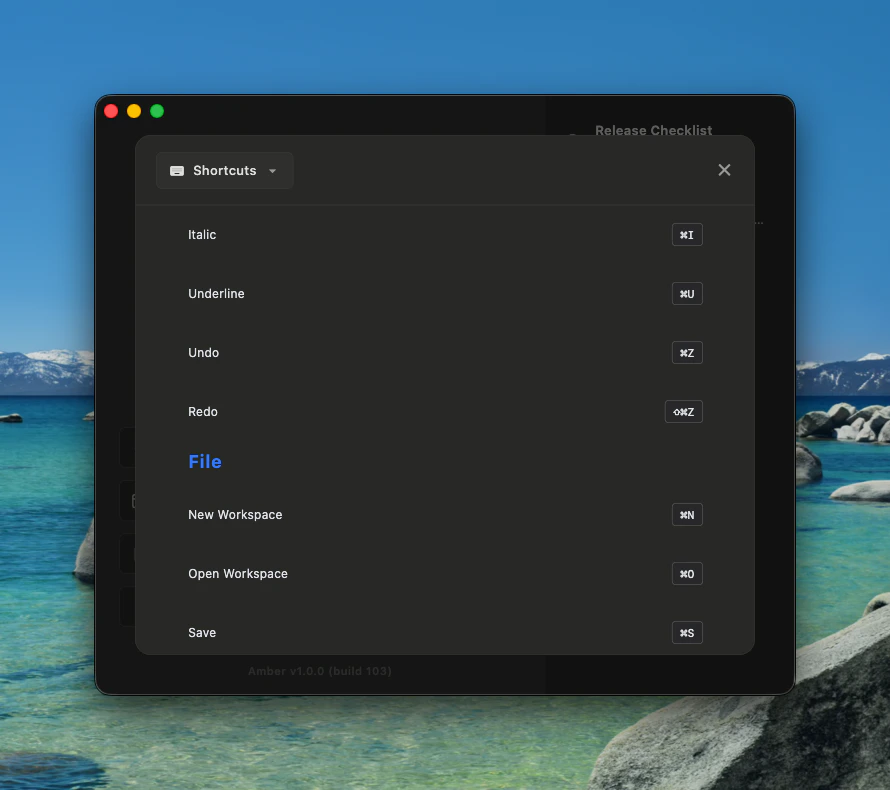
Editor
File
General
About
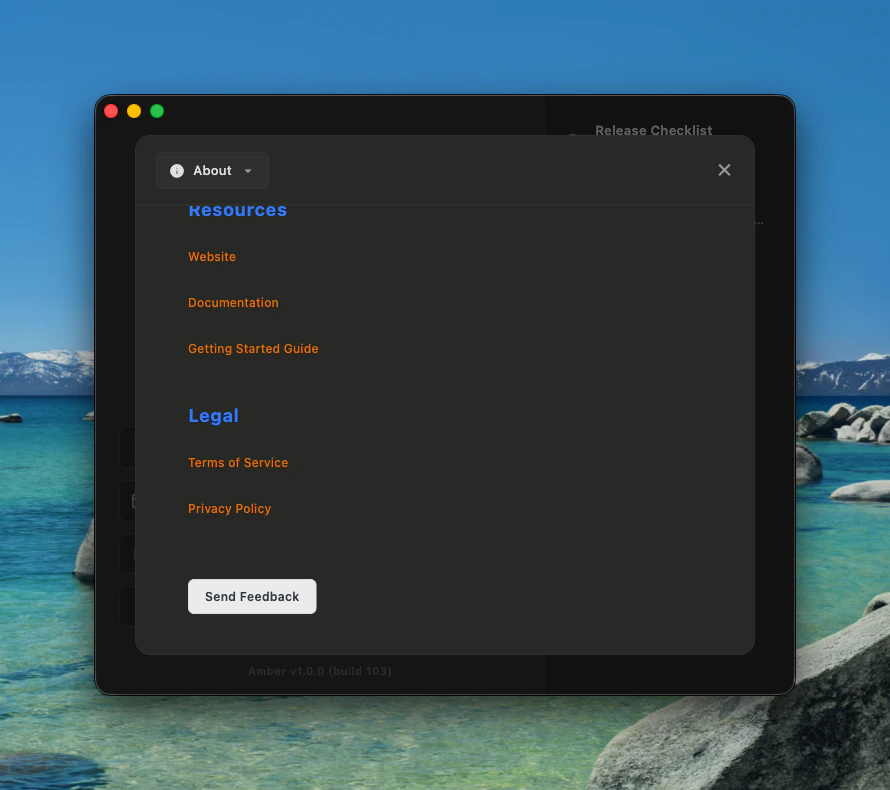
The About tab shows your current Amber version and build number.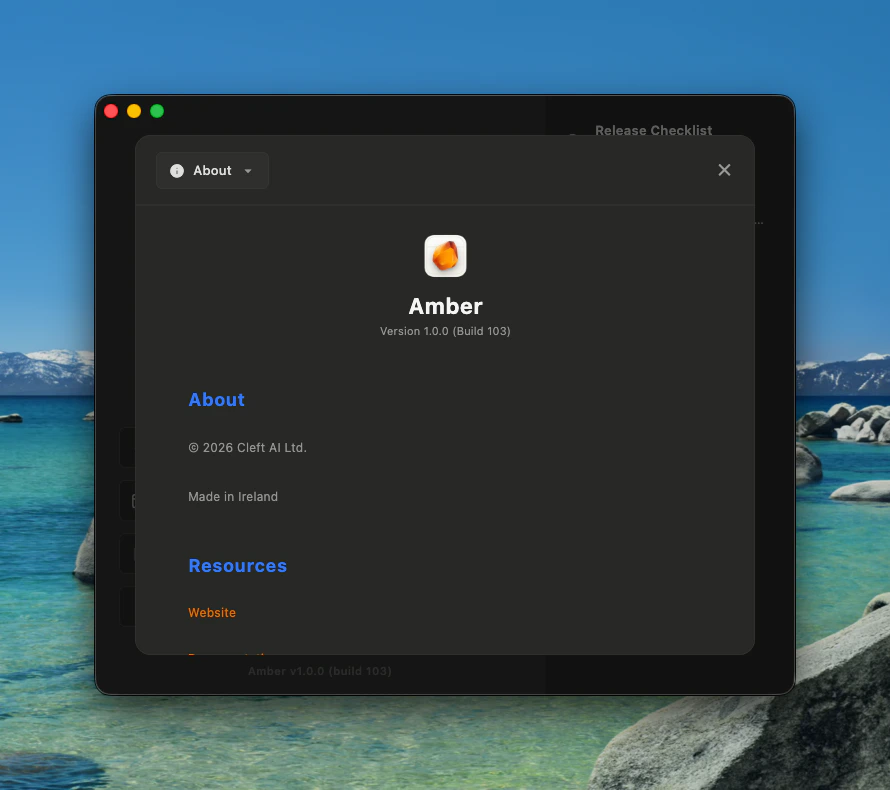
Related Guides
- Voice Recording — set your transcription language in Settings
- Auto-save & Version History — configure save intervals
- Amber Copilot — learn more about MCP integrations
- Text Formatting — keyboard shortcuts for formatting