
Starting a Voice Recording
1
Click the microphone icon
In any section, look for the microphone icon in the toolbar or use the keyboard shortcut (if enabled).
2
Grant microphone permission
If this is your first time, Amber will ask for microphone access. Click “Allow” in the System Preferences dialog.
3
Begin speaking
Click the red record button and start talking. Speak naturally—no need to spell out punctuation or formatting.
4
Stop recording
Click the stop button or press the keyboard shortcut again when finished.
5
Review transcription
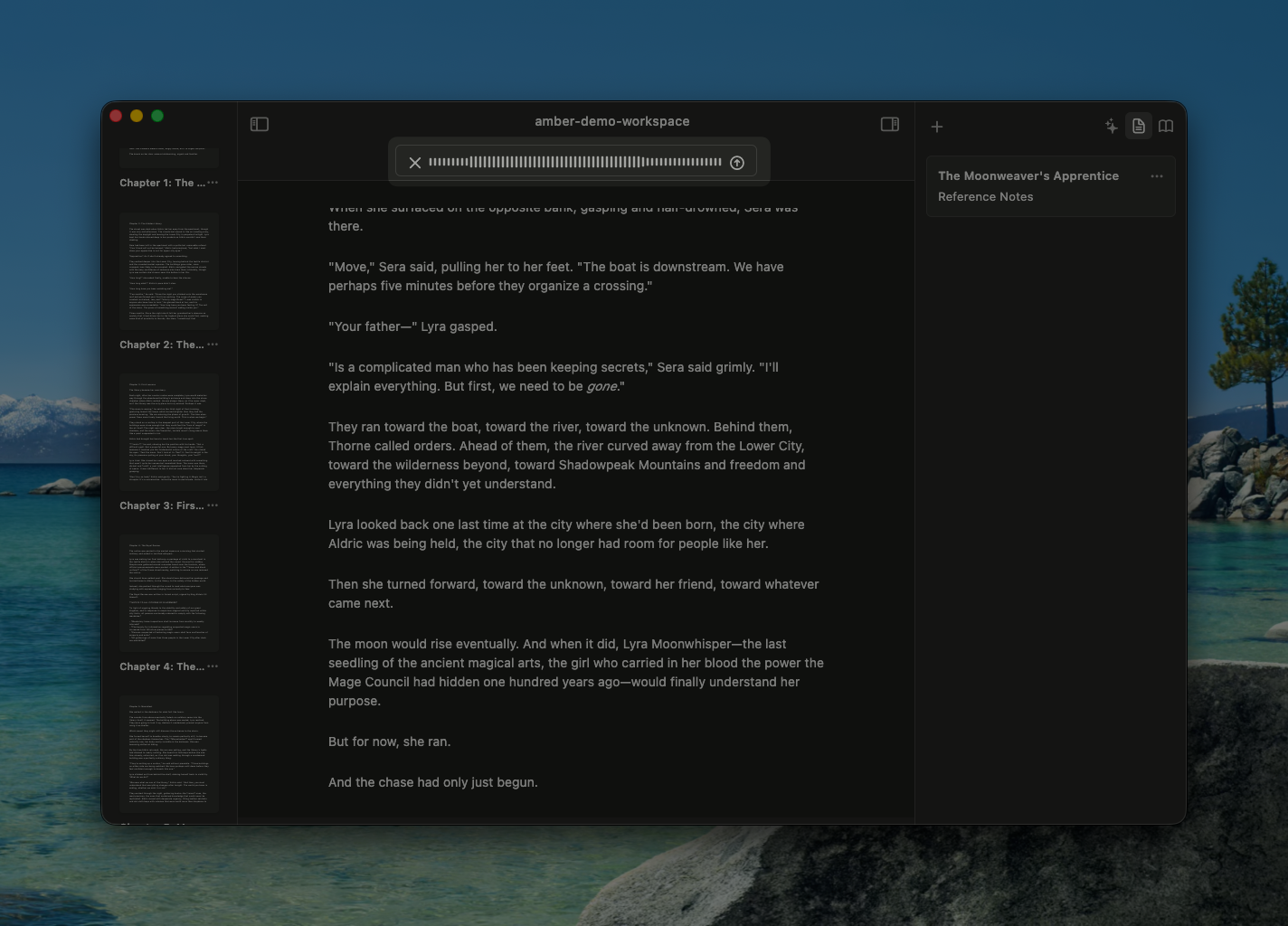
Amber displays the transcription as it completes. Review for accuracy and make any corrections before saving.
6
Save to section
Click “Insert” or “Save” to add the transcription to your document.
How Transcription Works
Amber uses advanced speech recognition to convert your audio into text: Smart Punctuation- Automatically detects sentence boundaries and adds periods
- Recognizes question marks when you ask questions
- Adds commas, colons, and other punctuation contextually
- Handles dialogue and nested punctuation
- Capitalizes the start of sentences
- Recognizes proper nouns when possible
- Handles acronyms and special terms correctly
- Transcription includes standard paragraph breaks
- Handles multiple speakers or side comments
- Preserves emphasis and tone through word choice
- First-time transcription is fast and generally accurate
- You can correct any misheard words before saving
- The more you use voice recording, the better it understands your voice and vocabulary
Best Practices for Voice Recording
Speak naturally and clearly- Don’t artificially slow down or over-enunciate
- Use your normal speaking voice
- Amber handles various accents and speech patterns
- Pause briefly between complete thoughts
- Don’t record extremely long sessions without a break
- Shorter recordings (under 5 minutes) transcribe faster
- Quiet environments produce better transcriptions
- A nearby phone call or loud machinery can affect accuracy
- Noise-canceling features help, but quiet is still best
- Record character dialogue with emotion and emphasis
- Amber captures the tone through word choice
- You can edit dialogue after transcription for accuracy
- Review transcription before inserting into your document
- Fix any misheard words or unclear passages
- This takes 30 seconds and ensures high quality
Common Use Cases
Brainstorming Session
“I’m on a walk and want to capture plot ideas without stopping.”- Start recording your stream of consciousness
- Amber captures all your ideas with proper punctuation
- Paste into your Notes or a new section
- Review and organize later at your desk
Dictating a First Draft
“I want to write a scene but I’d rather speak it than type.”- Create a new section for the scene
- Start recording and narrate the full scene
- Pause naturally between scenes or major beats
- Amber transcribes the entire draft ready for revision
Quick Ideas on the Go
“I just thought of dialogue and want to capture it now.”- Quick recording while waiting in line or at a red light
- Short bursts (30 seconds to 2 minutes) are perfect
- Amber captures the exact wording before you forget
Meeting or Research Notes
“I’m at a meeting or interview and want to record notes without constant typing.”- Record the conversation (ensure you have permission)
- Amber transcribes key points and important quotes
- Later, organize and add to your Sources or reference material
Editing Transcribed Text
After voice recording is transcribed and inserted into your document, you have full control: Make corrections immediately- Fix any misheard words right in the editor
- Adjust punctuation if needed
- This is usually just a few quick edits
- Ask AI to refine the writing style (make it more formal, poetic, etc.)
- Use the AI editing feature to improve phrasing
- Ask for grammar and clarity improvements
- Combine voice-recorded sections with typed sections
- Use voice for rough drafts and manual editing for polish
- Switch between voice and keyboard as needed
System Requirements
Voice recording is available on:- macOS 26+ (using Apple’s SpeechAnalyzer API)
- iOS 26+ (using Apple’s SpeechAnalyzer API)
- Older versions: Limited functionality with graceful fallback
Technical Details
Language Support- English (US, UK, and other variants supported)
- Additional languages may be supported based on your system settings
- Uses your Mac’s microphone (built-in or external)
- Works with USB microphones and wireless headsets
- Better microphones produce better transcriptions
- Voice recordings are processed using Apple’s SpeechAnalyzer API
- Audio is not stored permanently—only the transcription is saved
- No audio is sent to external servers (processing happens locally on your device)
- See Privacy & Data for complete information about how we handle your data
Troubleshooting Voice Recording
Microphone not detected- Check System Preferences > Security & Privacy > Microphone
- Ensure Amber has microphone permission
- Try a different microphone if available
- Restart Amber and try again
- Try speaking more clearly and at normal pace
- Reduce background noise if possible
- Check that your Mac’s language settings match the language you’re speaking
- Correct the transcription manually before saving—this is often quicker than re-recording
- Your Mac may have interrupted recording—check System Preferences
- Very long recordings (20+ minutes) may need to be split
- Try recording in shorter sessions for better results
- Check your microphone volume level isn’t too high
- Try a different microphone if available
- Restart the recording—there may have been a temporary issue
Keyboard Shortcuts
- Start/Stop Recording: Microphone button in toolbar, or custom shortcut if configured
- Cancel Recording: Escape key during recording preview
- Insert Transcription: Return key or “Insert” button
Related Guides
- Document Setup - Configure your workspace
- Text Formatting - Format your transcribed text
- Amber Copilot - Give instructions for voice transcription
- Amber Copilot - Refine transcribed text with AI assistance