> ## Documentation Index
> Fetch the complete documentation index at: https://learn.withamber.com/llms.txt
> Use this file to discover all available pages before exploring further.
# Voice Recording & Transcription
> Record audio directly into your sections and get automatic transcription with proper formatting
Amber's voice recording feature lets you capture your ideas the moment inspiration strikes—no need to be at your keyboard. Simply record audio directly into your sections, and Amber automatically transcribes it with proper punctuation, formatting, and capitalization.
Perfect for brainstorming while walking, dictating rough drafts, or capturing ideas when your hands are full.
## Starting a Voice Recording
In any section, look for the microphone icon in the toolbar or use the keyboard shortcut (if enabled).
If this is your first time, Amber will ask for microphone access. Click "Allow" in the System Preferences dialog.
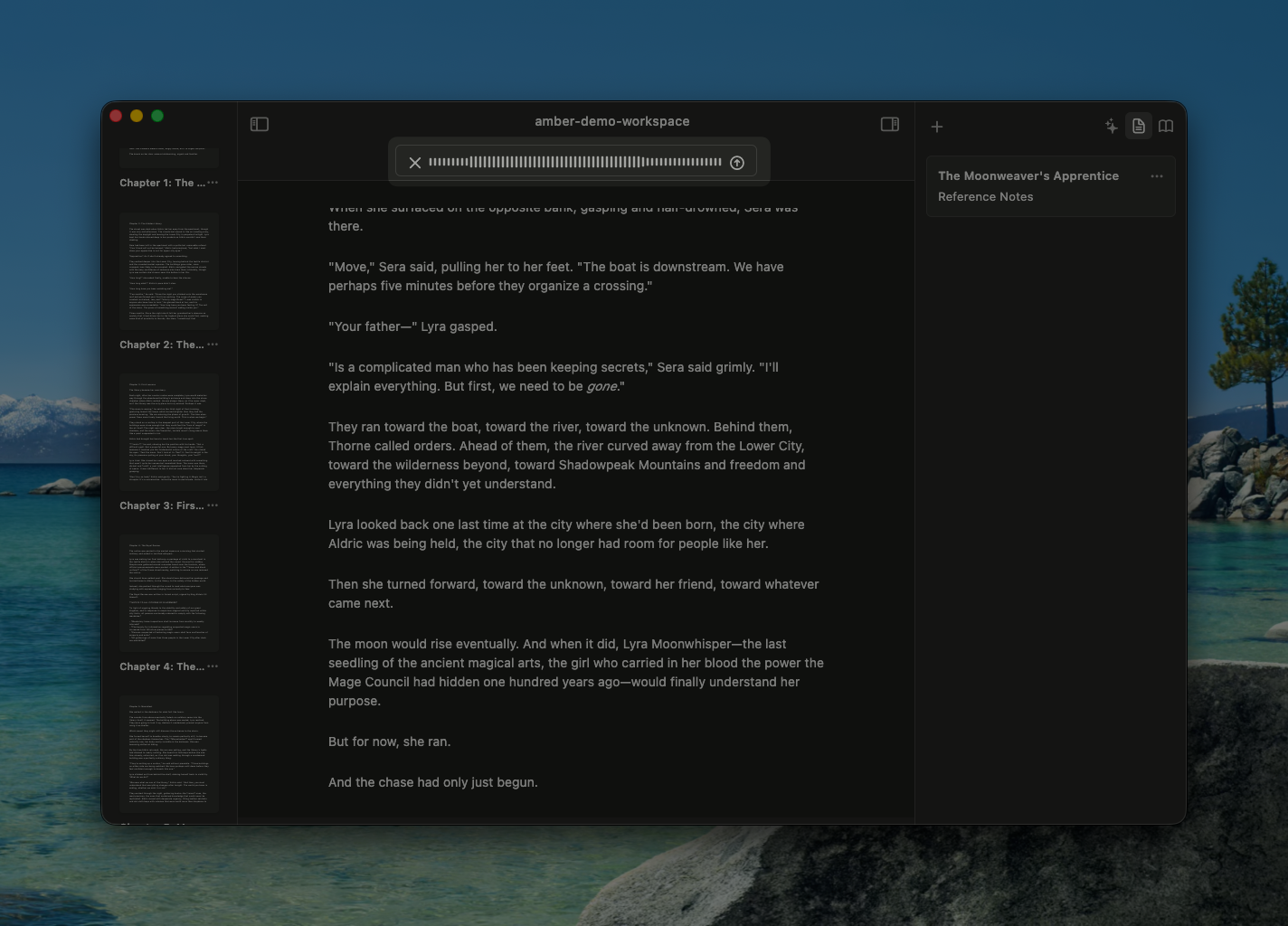
Click the red record button and start talking. Speak naturally—no need to spell out punctuation or formatting.
Click the stop button or press the keyboard shortcut again when finished.
Amber displays the transcription as it completes. Review for accuracy and make any corrections before saving.
Click "Insert" or "Save" to add the transcription to your document.
 ## How Transcription Works
Amber uses advanced speech recognition to convert your audio into text:
**Smart Punctuation**
* Automatically detects sentence boundaries and adds periods
* Recognizes question marks when you ask questions
* Adds commas, colons, and other punctuation contextually
* Handles dialogue and nested punctuation
**Proper Capitalization**
* Capitalizes the start of sentences
* Recognizes proper nouns when possible
* Handles acronyms and special terms correctly
**Formatting Preservation**
* Transcription includes standard paragraph breaks
* Handles multiple speakers or side comments
* Preserves emphasis and tone through word choice
**Accuracy Improvements**
* First-time transcription is fast and generally accurate
* You can correct any misheard words before saving
* The more you use voice recording, the better it understands your voice and vocabulary
## Best Practices for Voice Recording
**Speak naturally and clearly**
* Don't artificially slow down or over-enunciate
* Use your normal speaking voice
* Amber handles various accents and speech patterns
**Use natural breaks**
* Pause briefly between complete thoughts
* Don't record extremely long sessions without a break
* Shorter recordings (under 5 minutes) transcribe faster
**Minimize background noise**
* Quiet environments produce better transcriptions
* A nearby phone call or loud machinery can affect accuracy
* Noise-canceling features help, but quiet is still best
**For dialogue and complex content**
* Record character dialogue with emotion and emphasis
* Amber captures the tone through word choice
* You can edit dialogue after transcription for accuracy
**Correctness before saving**
* Review transcription before inserting into your document
* Fix any misheard words or unclear passages
* This takes 30 seconds and ensures high quality
## Common Use Cases
### Brainstorming Session
"I'm on a walk and want to capture plot ideas without stopping."
* Start recording your stream of consciousness
* Amber captures all your ideas with proper punctuation
* Paste into your Notes or a new section
* Review and organize later at your desk
### Dictating a First Draft
"I want to write a scene but I'd rather speak it than type."
* Create a new section for the scene
* Start recording and narrate the full scene
* Pause naturally between scenes or major beats
* Amber transcribes the entire draft ready for revision
### Quick Ideas on the Go
"I just thought of dialogue and want to capture it now."
* Quick recording while waiting in line or at a red light
* Short bursts (30 seconds to 2 minutes) are perfect
* Amber captures the exact wording before you forget
### Meeting or Research Notes
"I'm at a meeting or interview and want to record notes without constant typing."
* Record the conversation (ensure you have permission)
* Amber transcribes key points and important quotes
* Later, organize and add to your Sources or reference material
## Editing Transcribed Text
After voice recording is transcribed and inserted into your document, you have full control:
**Make corrections immediately**
* Fix any misheard words right in the editor
* Adjust punctuation if needed
* This is usually just a few quick edits
**Use Amber's AI features**
* Ask AI to refine the writing style (make it more formal, poetic, etc.)
* Use the AI editing feature to improve phrasing
* Ask for grammar and clarity improvements
**Integrate with your workflow**
* Combine voice-recorded sections with typed sections
* Use voice for rough drafts and manual editing for polish
* Switch between voice and keyboard as needed
## System Requirements
Voice recording is available on:
* **macOS 26+** (using Apple's SpeechAnalyzer API)
* **iOS 26+** (using Apple's SpeechAnalyzer API)
* **Older versions**: Limited functionality with graceful fallback
For older systems, Amber will show a message explaining that voice recording requires a newer OS version.
## Technical Details
**Language Support**
* English (US, UK, and other variants supported)
* Additional languages may be supported based on your system settings
**Audio Quality**
* Uses your Mac's microphone (built-in or external)
* Works with USB microphones and wireless headsets
* Better microphones produce better transcriptions
**Privacy & Security**
* Voice recordings are processed using Apple's SpeechAnalyzer API
* Audio is not stored permanently—only the transcription is saved
* No audio is sent to external servers (processing happens locally on your device)
* See [Privacy & Data](/Resources/privacy) for complete information about how we handle your data
## Troubleshooting Voice Recording
**Microphone not detected**
* Check System Preferences > Security & Privacy > Microphone
* Ensure Amber has microphone permission
* Try a different microphone if available
* Restart Amber and try again
**Transcription is inaccurate**
* Try speaking more clearly and at normal pace
* Reduce background noise if possible
* Check that your Mac's language settings match the language you're speaking
* Correct the transcription manually before saving—this is often quicker than re-recording
**Recording cuts off unexpectedly**
* Your Mac may have interrupted recording—check System Preferences
* Very long recordings (20+ minutes) may need to be split
* Try recording in shorter sessions for better results
**Audio sounds distorted in playback**
* Check your microphone volume level isn't too high
* Try a different microphone if available
* Restart the recording—there may have been a temporary issue
Combine voice recording with the **amber.md steering file** to give Amber instructions on how to transcribe and format your voice input. For example, you could specify that technical terms should be formatted as code blocks or that chapter breaks should be automatically inserted.
## Keyboard Shortcuts
* **Start/Stop Recording**: Microphone button in toolbar, or custom shortcut if configured
* **Cancel Recording**: Escape key during recording preview
* **Insert Transcription**: Return key or "Insert" button
## Related Guides
* [Document Setup](/user-guides/document-setup) - Configure your workspace
* [Text Formatting](/user-guides/text-formatting) - Format your transcribed text
* [Amber Copilot](/user-guides/amber-copilot#steering-your-copilot) - Give instructions for voice transcription
* [Amber Copilot](/user-guides/amber-copilot) - Refine transcribed text with AI assistance
## How Transcription Works
Amber uses advanced speech recognition to convert your audio into text:
**Smart Punctuation**
* Automatically detects sentence boundaries and adds periods
* Recognizes question marks when you ask questions
* Adds commas, colons, and other punctuation contextually
* Handles dialogue and nested punctuation
**Proper Capitalization**
* Capitalizes the start of sentences
* Recognizes proper nouns when possible
* Handles acronyms and special terms correctly
**Formatting Preservation**
* Transcription includes standard paragraph breaks
* Handles multiple speakers or side comments
* Preserves emphasis and tone through word choice
**Accuracy Improvements**
* First-time transcription is fast and generally accurate
* You can correct any misheard words before saving
* The more you use voice recording, the better it understands your voice and vocabulary
## Best Practices for Voice Recording
**Speak naturally and clearly**
* Don't artificially slow down or over-enunciate
* Use your normal speaking voice
* Amber handles various accents and speech patterns
**Use natural breaks**
* Pause briefly between complete thoughts
* Don't record extremely long sessions without a break
* Shorter recordings (under 5 minutes) transcribe faster
**Minimize background noise**
* Quiet environments produce better transcriptions
* A nearby phone call or loud machinery can affect accuracy
* Noise-canceling features help, but quiet is still best
**For dialogue and complex content**
* Record character dialogue with emotion and emphasis
* Amber captures the tone through word choice
* You can edit dialogue after transcription for accuracy
**Correctness before saving**
* Review transcription before inserting into your document
* Fix any misheard words or unclear passages
* This takes 30 seconds and ensures high quality
## Common Use Cases
### Brainstorming Session
"I'm on a walk and want to capture plot ideas without stopping."
* Start recording your stream of consciousness
* Amber captures all your ideas with proper punctuation
* Paste into your Notes or a new section
* Review and organize later at your desk
### Dictating a First Draft
"I want to write a scene but I'd rather speak it than type."
* Create a new section for the scene
* Start recording and narrate the full scene
* Pause naturally between scenes or major beats
* Amber transcribes the entire draft ready for revision
### Quick Ideas on the Go
"I just thought of dialogue and want to capture it now."
* Quick recording while waiting in line or at a red light
* Short bursts (30 seconds to 2 minutes) are perfect
* Amber captures the exact wording before you forget
### Meeting or Research Notes
"I'm at a meeting or interview and want to record notes without constant typing."
* Record the conversation (ensure you have permission)
* Amber transcribes key points and important quotes
* Later, organize and add to your Sources or reference material
## Editing Transcribed Text
After voice recording is transcribed and inserted into your document, you have full control:
**Make corrections immediately**
* Fix any misheard words right in the editor
* Adjust punctuation if needed
* This is usually just a few quick edits
**Use Amber's AI features**
* Ask AI to refine the writing style (make it more formal, poetic, etc.)
* Use the AI editing feature to improve phrasing
* Ask for grammar and clarity improvements
**Integrate with your workflow**
* Combine voice-recorded sections with typed sections
* Use voice for rough drafts and manual editing for polish
* Switch between voice and keyboard as needed
## System Requirements
Voice recording is available on:
* **macOS 26+** (using Apple's SpeechAnalyzer API)
* **iOS 26+** (using Apple's SpeechAnalyzer API)
* **Older versions**: Limited functionality with graceful fallback
For older systems, Amber will show a message explaining that voice recording requires a newer OS version.
## Technical Details
**Language Support**
* English (US, UK, and other variants supported)
* Additional languages may be supported based on your system settings
**Audio Quality**
* Uses your Mac's microphone (built-in or external)
* Works with USB microphones and wireless headsets
* Better microphones produce better transcriptions
**Privacy & Security**
* Voice recordings are processed using Apple's SpeechAnalyzer API
* Audio is not stored permanently—only the transcription is saved
* No audio is sent to external servers (processing happens locally on your device)
* See [Privacy & Data](/Resources/privacy) for complete information about how we handle your data
## Troubleshooting Voice Recording
**Microphone not detected**
* Check System Preferences > Security & Privacy > Microphone
* Ensure Amber has microphone permission
* Try a different microphone if available
* Restart Amber and try again
**Transcription is inaccurate**
* Try speaking more clearly and at normal pace
* Reduce background noise if possible
* Check that your Mac's language settings match the language you're speaking
* Correct the transcription manually before saving—this is often quicker than re-recording
**Recording cuts off unexpectedly**
* Your Mac may have interrupted recording—check System Preferences
* Very long recordings (20+ minutes) may need to be split
* Try recording in shorter sessions for better results
**Audio sounds distorted in playback**
* Check your microphone volume level isn't too high
* Try a different microphone if available
* Restart the recording—there may have been a temporary issue
Combine voice recording with the **amber.md steering file** to give Amber instructions on how to transcribe and format your voice input. For example, you could specify that technical terms should be formatted as code blocks or that chapter breaks should be automatically inserted.
## Keyboard Shortcuts
* **Start/Stop Recording**: Microphone button in toolbar, or custom shortcut if configured
* **Cancel Recording**: Escape key during recording preview
* **Insert Transcription**: Return key or "Insert" button
## Related Guides
* [Document Setup](/user-guides/document-setup) - Configure your workspace
* [Text Formatting](/user-guides/text-formatting) - Format your transcribed text
* [Amber Copilot](/user-guides/amber-copilot#steering-your-copilot) - Give instructions for voice transcription
* [Amber Copilot](/user-guides/amber-copilot) - Refine transcribed text with AI assistance