> ## Documentation Index
> Fetch the complete documentation index at: https://learn.withamber.com/llms.txt
> Use this file to discover all available pages before exploring further.
# Settings & Preferences
> Customize Amber to match your writing style and workflow
Open Settings with `⌘,` on Mac. Fonts, theme, integrations, shortcuts, and app info — all in one place.
## Your Editor, Your Way
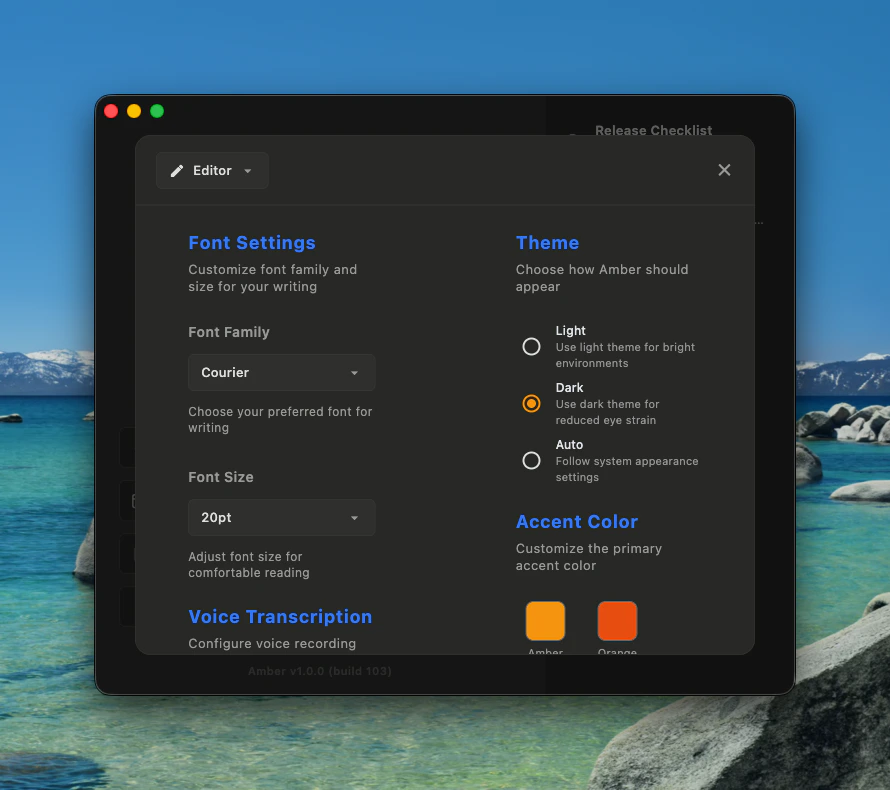
Set up your writing environment the way you like it. The Editor tab shows your writing preferences on the left and appearance settings on the right.
 ### Font
Choose any font installed on your Mac from the dropdown. Pick a size between 10pt and 24pt — the default is 16pt.
Try a serif font like New York for long-form writing, or a monospace font like Courier New for screenplays and code-heavy notes.
### Transcription Language
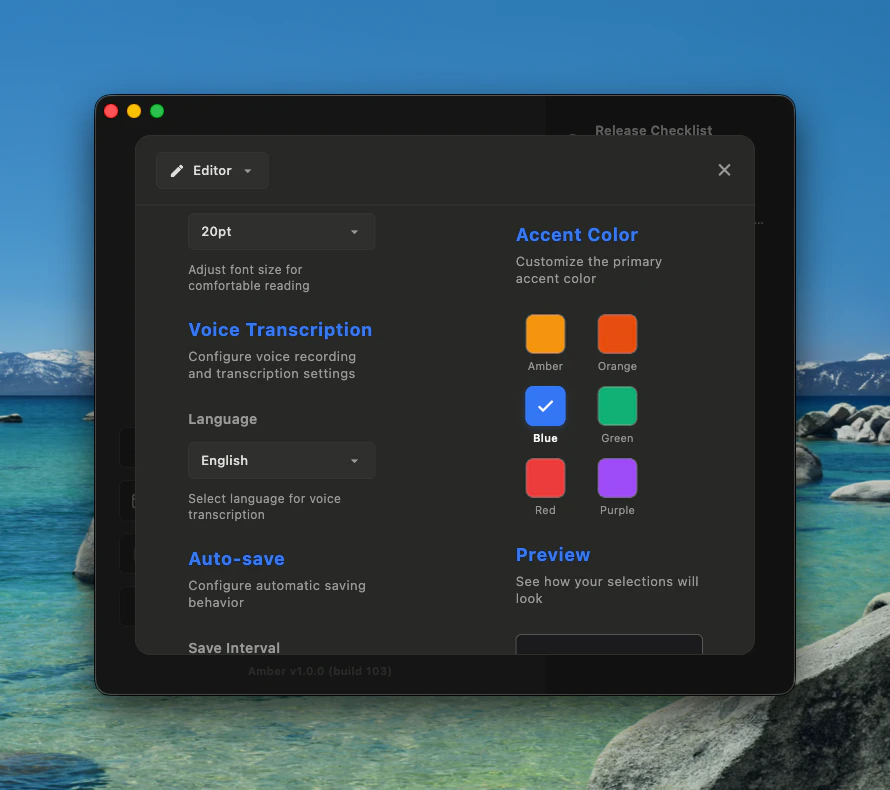
If you use [voice recording](/user-guides/voice-recording), choose your transcription language here. Amber supports 25 languages including English, Spanish, French, German, Italian, Portuguese, Russian, Japanese, Korean, Chinese, Arabic, Hindi, and more. The default is English.
### Accent Color
Make Amber feel like yours. Choose from six presets: Amber, Orange, Blue, Green, Red, and Purple.
### Font
Choose any font installed on your Mac from the dropdown. Pick a size between 10pt and 24pt — the default is 16pt.
Try a serif font like New York for long-form writing, or a monospace font like Courier New for screenplays and code-heavy notes.
### Transcription Language
If you use [voice recording](/user-guides/voice-recording), choose your transcription language here. Amber supports 25 languages including English, Spanish, French, German, Italian, Portuguese, Russian, Japanese, Korean, Chinese, Arabic, Hindi, and more. The default is English.
### Accent Color
Make Amber feel like yours. Choose from six presets: Amber, Orange, Blue, Green, Red, and Purple.
 ### Auto-save and Preview
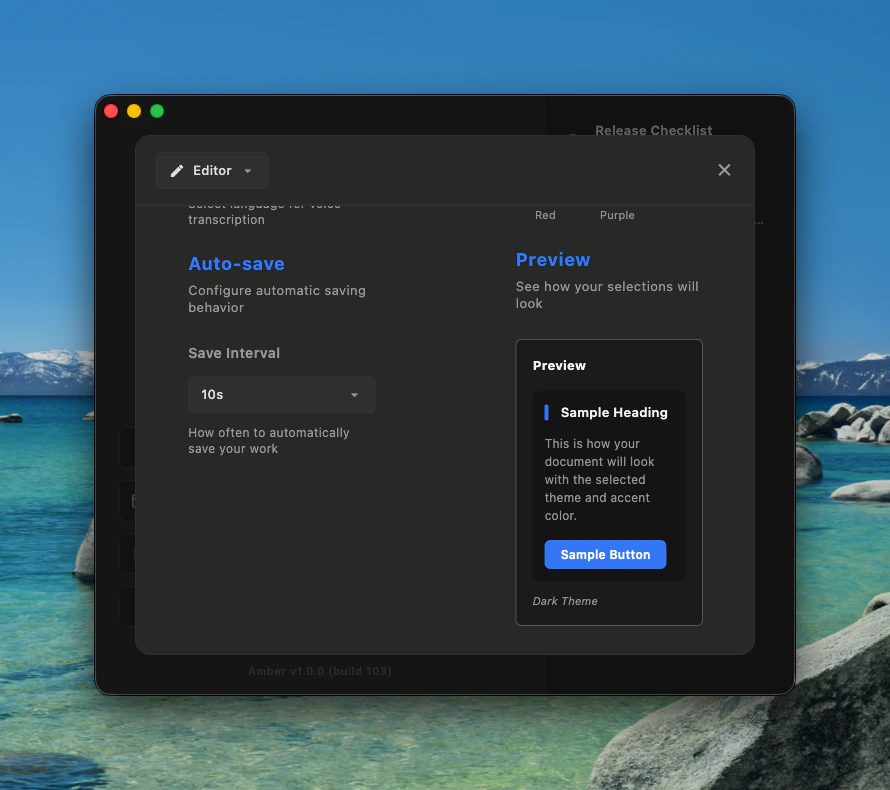
Choose how often Amber saves your work in the background: every 5, 10, or 30 seconds. The default is every 10 seconds. Learn more in the [auto-save guide](/user-guides/auto-save).
The live preview on the right updates as you change your theme and accent color, so you can see exactly how your choice looks before you move on.
### Auto-save and Preview
Choose how often Amber saves your work in the background: every 5, 10, or 30 seconds. The default is every 10 seconds. Learn more in the [auto-save guide](/user-guides/auto-save).
The live preview on the right updates as you change your theme and accent color, so you can see exactly how your choice looks before you move on.
 ## Make It Look Right
Appearance settings sit alongside your editor settings in the same tab.
### Theme
Pick the look that suits your environment:
* **Light** — bright background for well-lit spaces
* **Dark** — easier on the eyes in low light
* **Auto** — follows your Mac system setting (default)
## Connect Your Tools
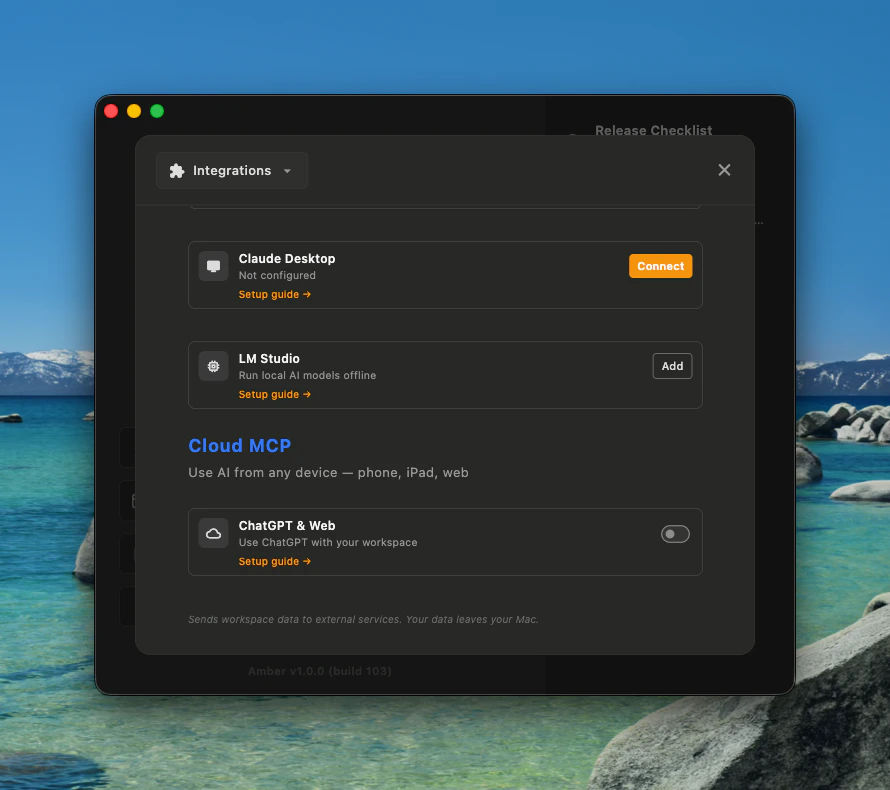
The Integrations tab lets you connect Amber to external tools. There are two sections: local (stays on your Mac) and cloud (connects to external services).
## Make It Look Right
Appearance settings sit alongside your editor settings in the same tab.
### Theme
Pick the look that suits your environment:
* **Light** — bright background for well-lit spaces
* **Dark** — easier on the eyes in low light
* **Auto** — follows your Mac system setting (default)
## Connect Your Tools
The Integrations tab lets you connect Amber to external tools. There are two sections: local (stays on your Mac) and cloud (connects to external services).
 ### Local Integrations
These run entirely on your machine. Your data never leaves your Mac.
**Local MCP Server**
Toggle this on to let tools like Claude Desktop and LM Studio access your workspace. Runs on `localhost:9080`.
**Claude Desktop**
Connect Amber to Claude Desktop for a richer writing assistant experience.
If you do not have it yet, click "Get app" to download it.
Click "Connect" to link Amber to Claude Desktop. This installs the Amber extension automatically.
Click "Disconnect" any time to remove the connection.
**LM Studio**
Click "Add" to connect LM Studio for running local AI models offline.
### Cloud Integrations
These connect to external services. Your workspace data leaves your Mac when enabled.
Cloud integrations send workspace data to external services. Only enable this if you are comfortable with your data leaving your device.
**ChatGPT & Web**
Toggle this on to use your Amber workspace with ChatGPT and other web-based tools. You will be asked to sign in. Once connected, your account email is shown in the status.
To disconnect, click "Sign out" at the bottom of the section.
## Every Shortcut at a Glance
The Shortcuts tab shows all keyboard shortcuts in one searchable list. Type in the search bar to find what you need.
### Local Integrations
These run entirely on your machine. Your data never leaves your Mac.
**Local MCP Server**
Toggle this on to let tools like Claude Desktop and LM Studio access your workspace. Runs on `localhost:9080`.
**Claude Desktop**
Connect Amber to Claude Desktop for a richer writing assistant experience.
If you do not have it yet, click "Get app" to download it.
Click "Connect" to link Amber to Claude Desktop. This installs the Amber extension automatically.
Click "Disconnect" any time to remove the connection.
**LM Studio**
Click "Add" to connect LM Studio for running local AI models offline.
### Cloud Integrations
These connect to external services. Your workspace data leaves your Mac when enabled.
Cloud integrations send workspace data to external services. Only enable this if you are comfortable with your data leaving your device.
**ChatGPT & Web**
Toggle this on to use your Amber workspace with ChatGPT and other web-based tools. You will be asked to sign in. Once connected, your account email is shown in the status.
To disconnect, click "Sign out" at the bottom of the section.
## Every Shortcut at a Glance
The Shortcuts tab shows all keyboard shortcuts in one searchable list. Type in the search bar to find what you need.
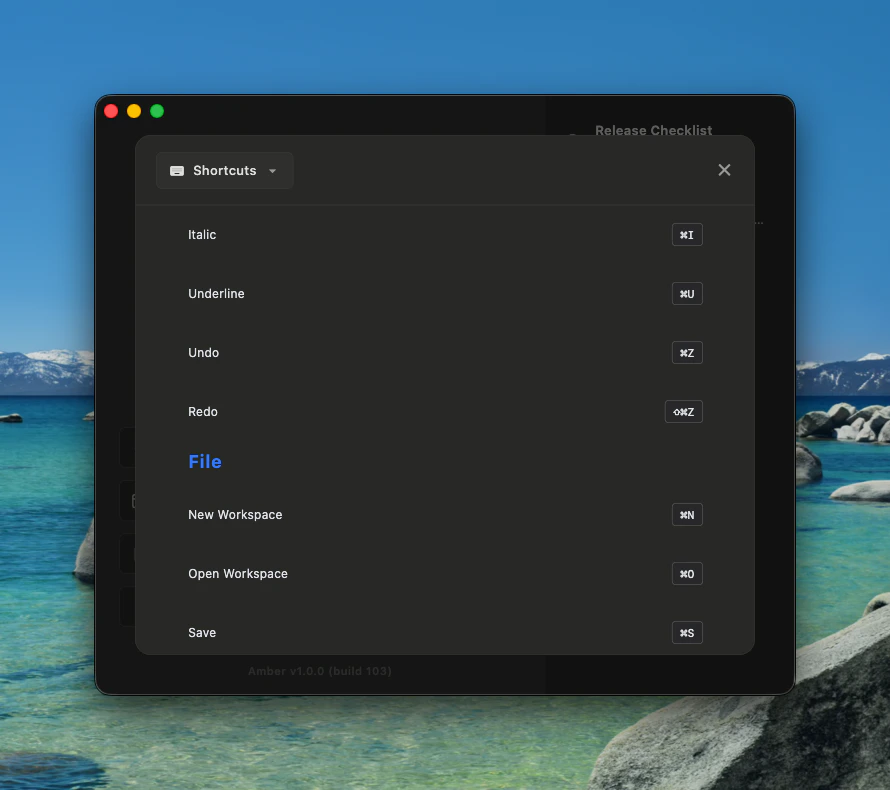 ### Editor
| Action | Shortcut |
| --------- | -------- |
| Bold | `⌘B` |
| Italic | `⌘I` |
| Underline | `⌘U` |
| Undo | `⌘Z` |
| Redo | `⇧⌘Z` |
### File
| Action | Shortcut |
| -------------- | -------- |
| New Workspace | `⌘N` |
| Open Workspace | `⌘O` |
| Save | `⌘S` |
### General
| Action | Shortcut |
| ---------- | -------- |
| Settings | `⌘,` |
| Cut | `⌘X` |
| Copy | `⌘C` |
| Paste | `⌘V` |
| Select All | `⌘A` |
| Fullscreen | `⌃⌘F` |
These are also available inside the app in Settings > Shortcuts, where you can search by action name or key combination.
## About
The About tab shows your current Amber version and build number.
### Editor
| Action | Shortcut |
| --------- | -------- |
| Bold | `⌘B` |
| Italic | `⌘I` |
| Underline | `⌘U` |
| Undo | `⌘Z` |
| Redo | `⇧⌘Z` |
### File
| Action | Shortcut |
| -------------- | -------- |
| New Workspace | `⌘N` |
| Open Workspace | `⌘O` |
| Save | `⌘S` |
### General
| Action | Shortcut |
| ---------- | -------- |
| Settings | `⌘,` |
| Cut | `⌘X` |
| Copy | `⌘C` |
| Paste | `⌘V` |
| Select All | `⌘A` |
| Fullscreen | `⌃⌘F` |
These are also available inside the app in Settings > Shortcuts, where you can search by action name or key combination.
## About
The About tab shows your current Amber version and build number.
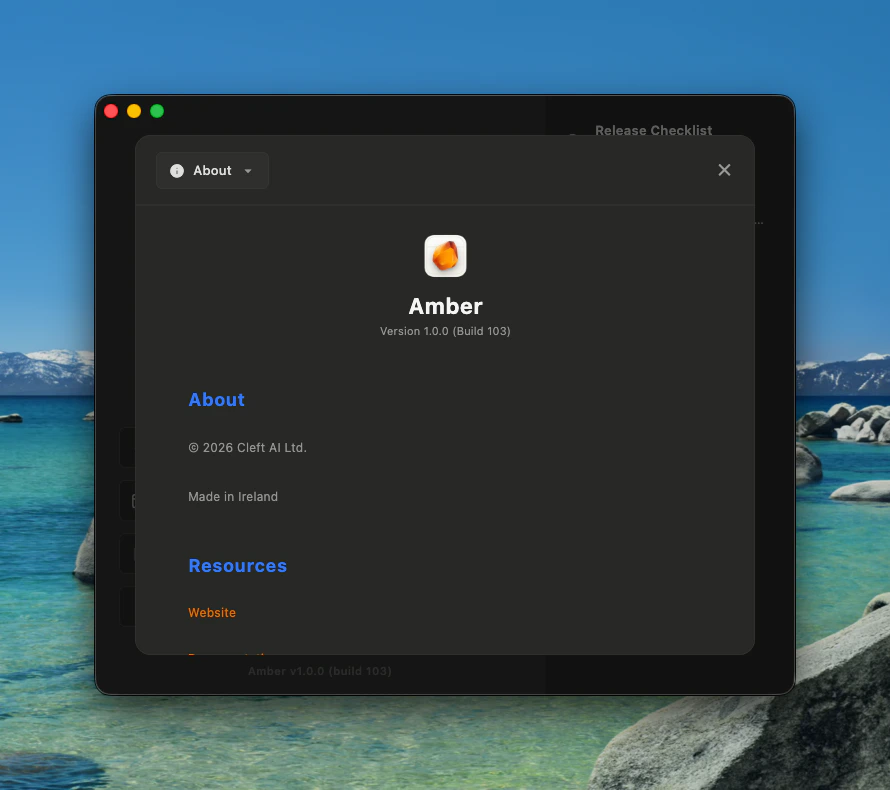 You will also find links to:
* [Amber website](https://cleft.ai)
* [Documentation](https://learn.withamber.com)
* [Getting Started guide](/user-guides/getting-started-writing-with-amber)
* [Terms of Service](https://cleft.ai/terms)
* [Privacy Policy](https://cleft.ai/privacy)
You will also find links to:
* [Amber website](https://cleft.ai)
* [Documentation](https://learn.withamber.com)
* [Getting Started guide](/user-guides/getting-started-writing-with-amber)
* [Terms of Service](https://cleft.ai/terms)
* [Privacy Policy](https://cleft.ai/privacy)
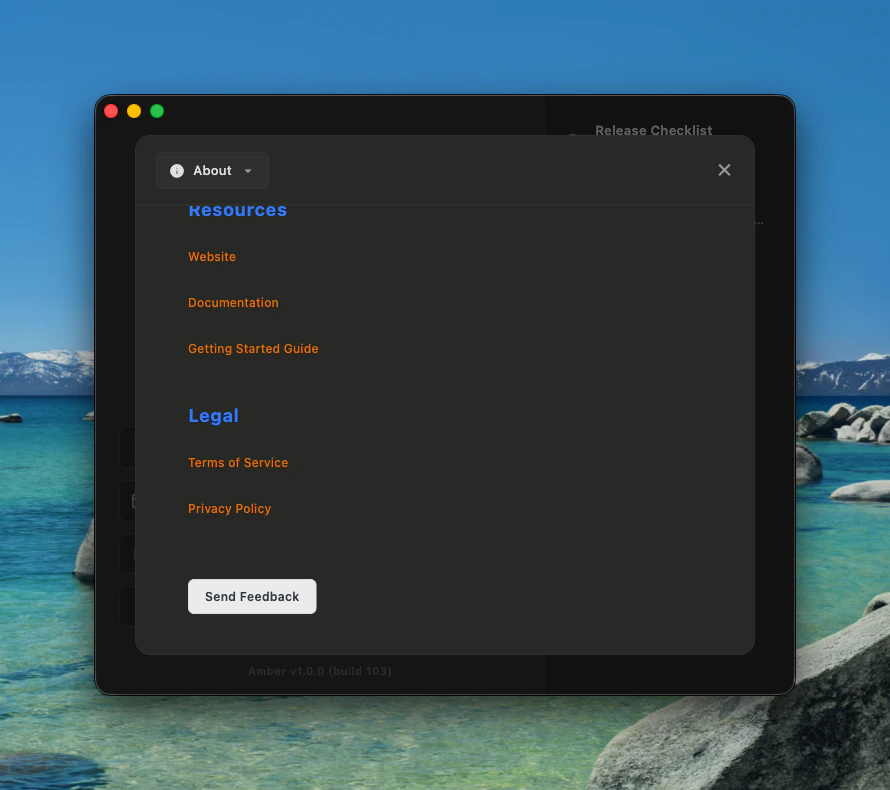 To send feedback, click the feedback button or email us directly.
## Related Guides
* [Voice Recording](/user-guides/voice-recording) — set your transcription language in Settings
* [Auto-save & Version History](/user-guides/auto-save) — configure save intervals
* [Amber Copilot](/user-guides/amber-copilot) — learn more about MCP integrations
* [Text Formatting](/user-guides/text-formatting) — keyboard shortcuts for formatting
To send feedback, click the feedback button or email us directly.
## Related Guides
* [Voice Recording](/user-guides/voice-recording) — set your transcription language in Settings
* [Auto-save & Version History](/user-guides/auto-save) — configure save intervals
* [Amber Copilot](/user-guides/amber-copilot) — learn more about MCP integrations
* [Text Formatting](/user-guides/text-formatting) — keyboard shortcuts for formatting