> ## Documentation Index
> Fetch the complete documentation index at: https://learn.withamber.com/llms.txt
> Use this file to discover all available pages before exploring further.
# Write with Amber
> Sharpen your craft with Amber, the creative writing companion for writers
Requires macOS 14 or newer.
## Key Features
Amber includes powerful features to enhance your writing:
* **Open File Format**: Your work is now stored as markdown and JSON (no proprietary format). [Learn about file format →](/user-guides/file-format)
* **Voice Recording**: Record and transcribe directly into your sections. [Learn about voice recording →](/user-guides/voice-recording)
* **amber.md Steering File**: Control AI behavior with markdown instructions instead of menus. [Learn about steering your Copilot →](/user-guides/amber-copilot#steering-your-copilot)
* **Sources & Smart Context**: Provide detailed reference material and let AI intelligently select what's relevant. [Learn about sources →](/user-guides/amber-copilot#using-sources-as-context)
* **AI Editing with Diffs**: See exactly what will change before accepting edits. [Learn about Copilot →](/user-guides/amber-copilot)
* **Enhanced Chat**: Use `⌘L` to chat about selected text with smart context selection.
## Open a workspace
Launch the application from your Applications folder or Spotlight search
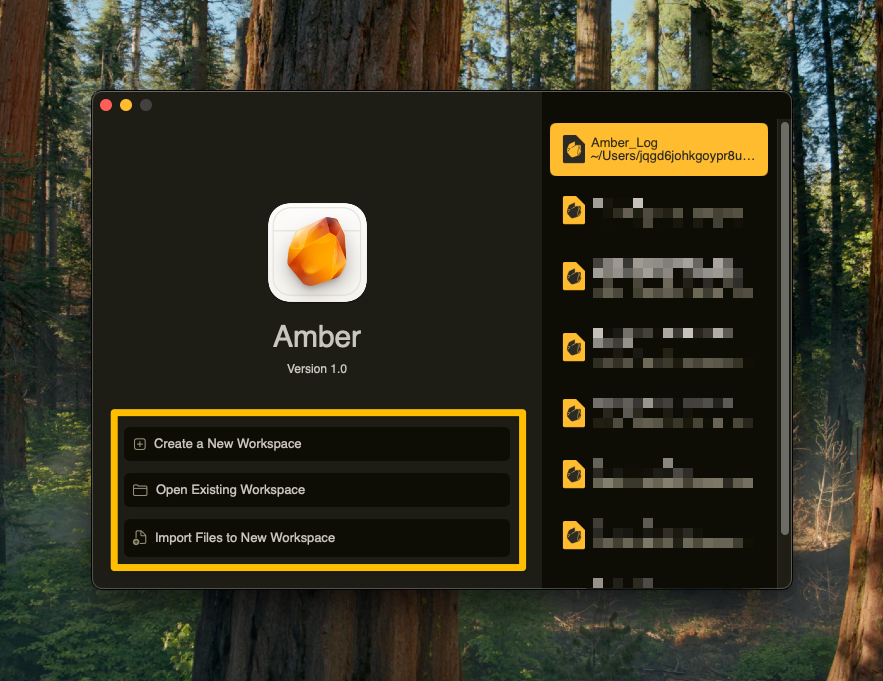
* Create new workspace with `⌘ + ⇧ + N`
* Open existing workspace with `⌘ + O`
* Import .docx or .md files
Your new writing space will open automatically
## Start writing
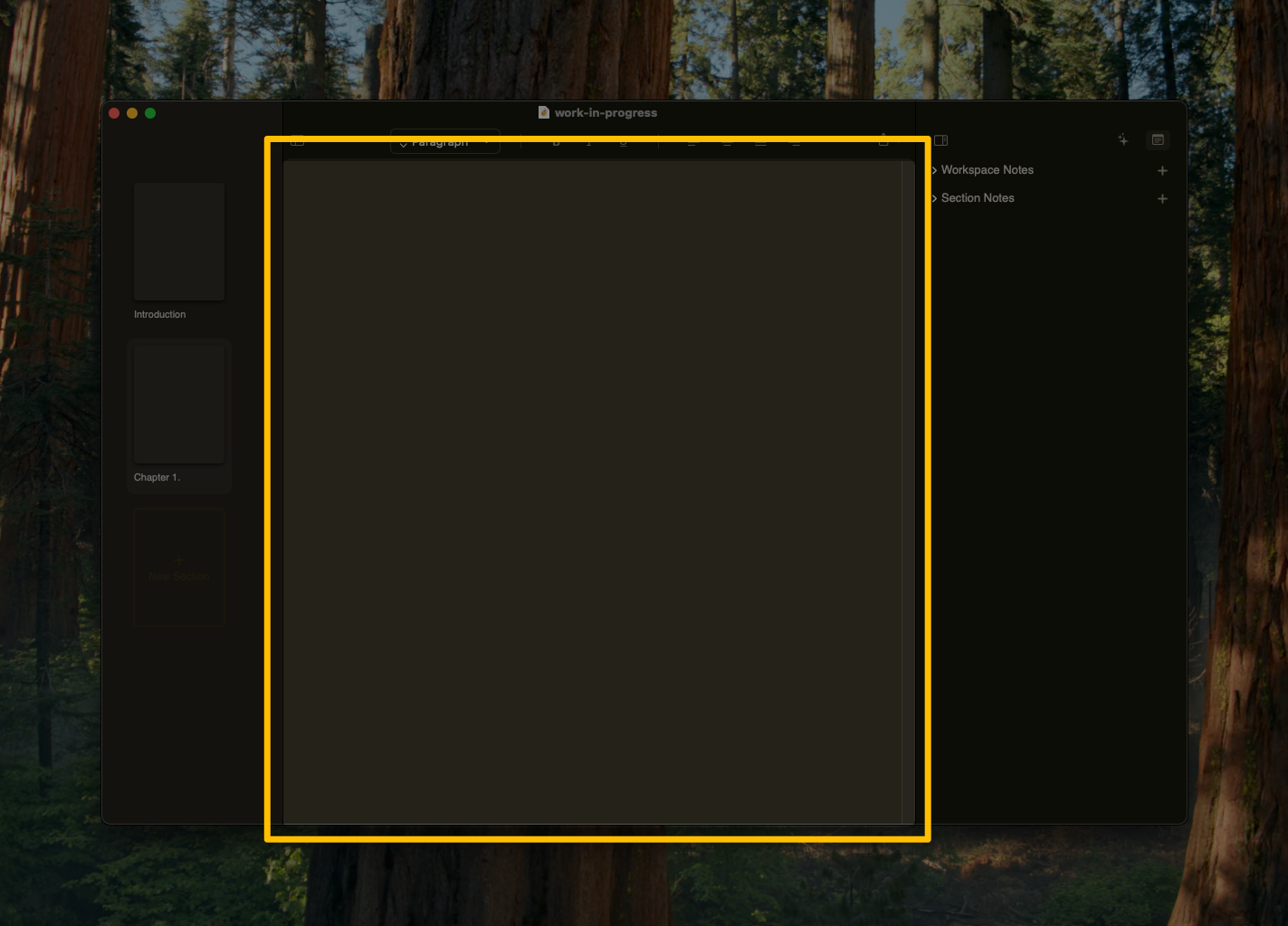
* **Left**: Your sections (chapters, scenes, or organization)
* **Center**: Your infinite writing canvas
* **Right**: Your AI companion and notes
* Show/hide left panel: `⌘ + ⌥ + 2`
* Show/hide right panel: `⌘ + ⌥ + 3`
* Enter full screen: `⌘ + ⌥ + 4`
## Reference Notes & Sources
Amber provides two types of reference material:
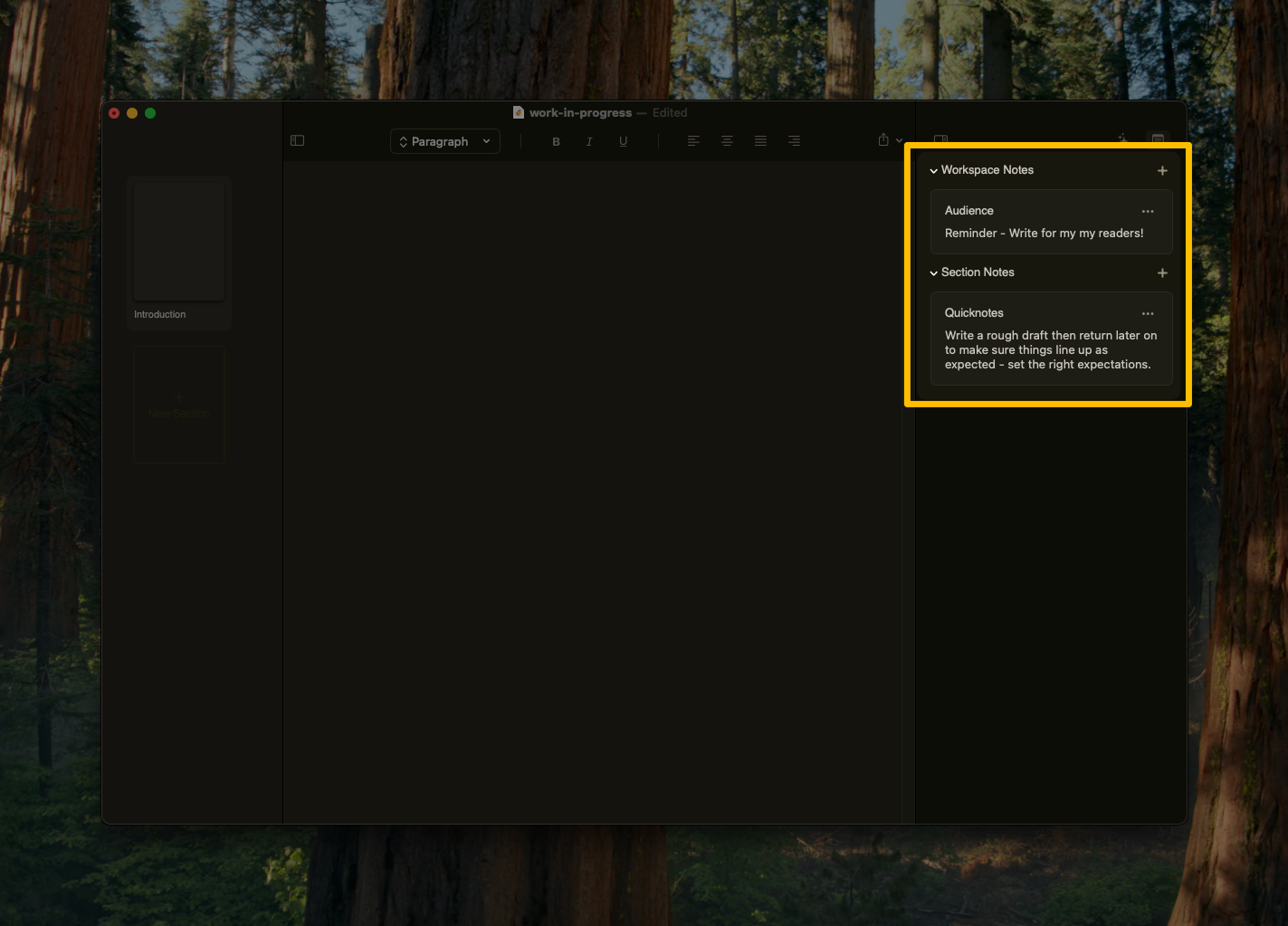
**Notes** - Quick reference facts and ideas
* Section Notes for chapter-specific details
* Workspace Notes for story-wide reference
* Add new notes from the panel
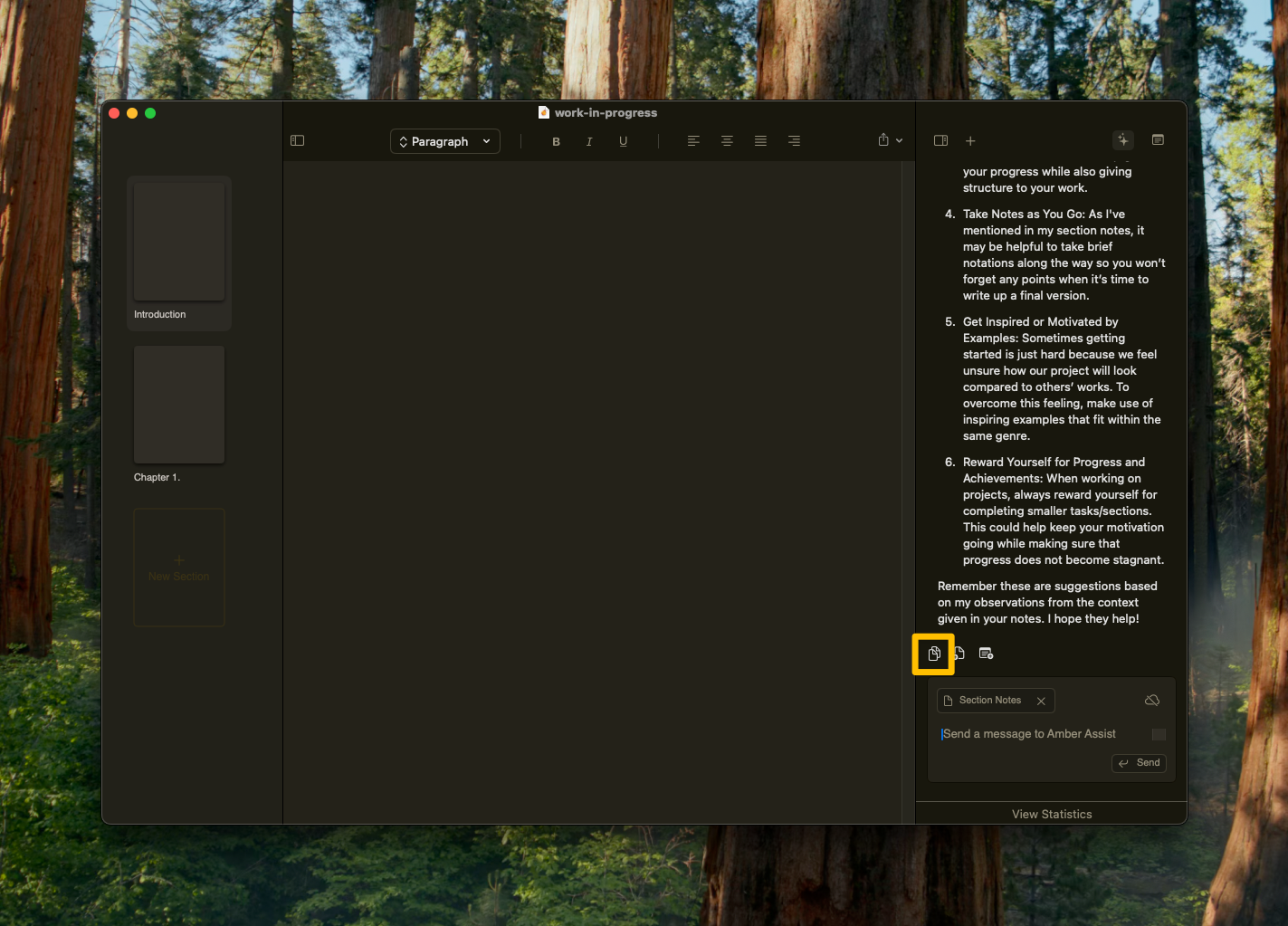
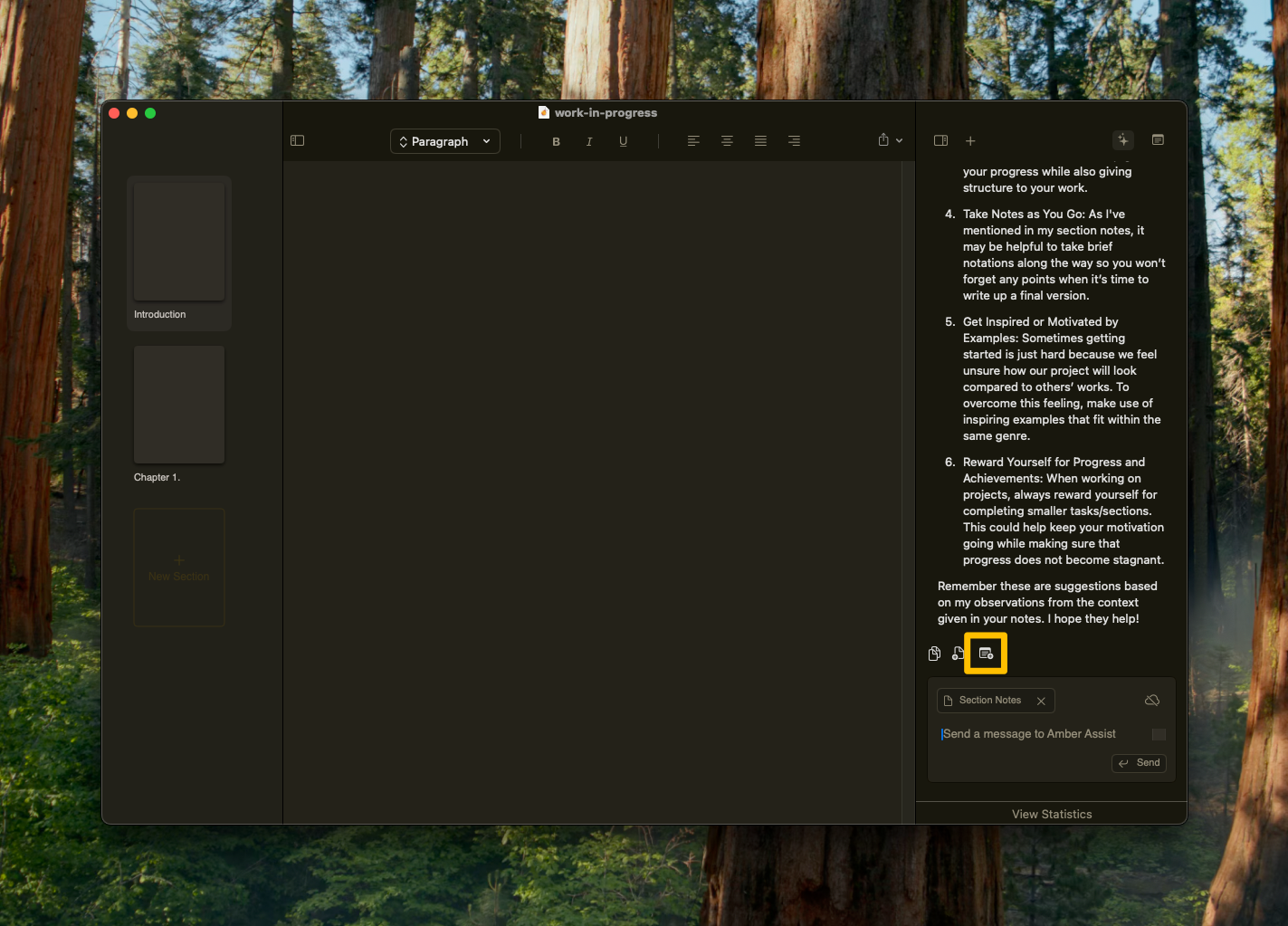
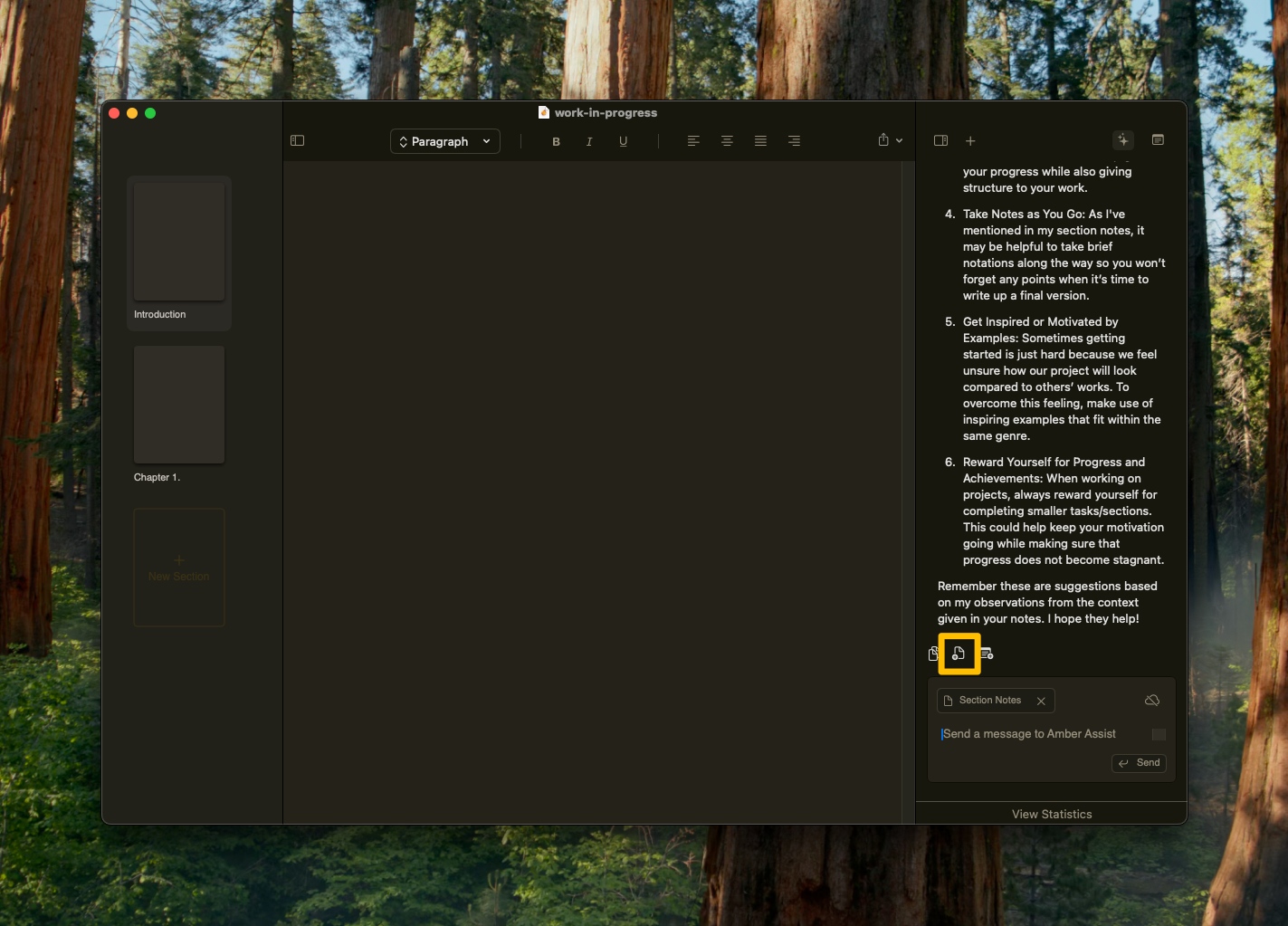
* Create notes from AI suggestions
Your notes are always available throughout your workspace
**Sources** - Detailed reference material with smart AI context selection
* Store detailed character backstories, world-building documents, research material
* AI uses vector embeddings to intelligently select relevant sources
* Perfect for complex projects with rich reference material
* [Learn more about sources →](/user-guides/amber-copilot#using-sources-as-context)
Use **Notes** for quick facts ("Elena is afraid of water") and **Sources** for detailed material (Elena's full backstory and trauma history).
## Amber Copilot (AI Chat & Editing)
Press `⌘L` to instantly chat about any selected passage:
* Ask for suggestions on a specific sentence
* Request edits with visual diffs
* Get feedback on selected text
* All context-aware based on your selection
Click the + button to begin a comprehensive conversation about your project:
* Writer's block solutions
* Story questions answered
* Section ideas generated
* Research assistance
* Full workspace context available
* Insert as a new section or reference note
## Formatting
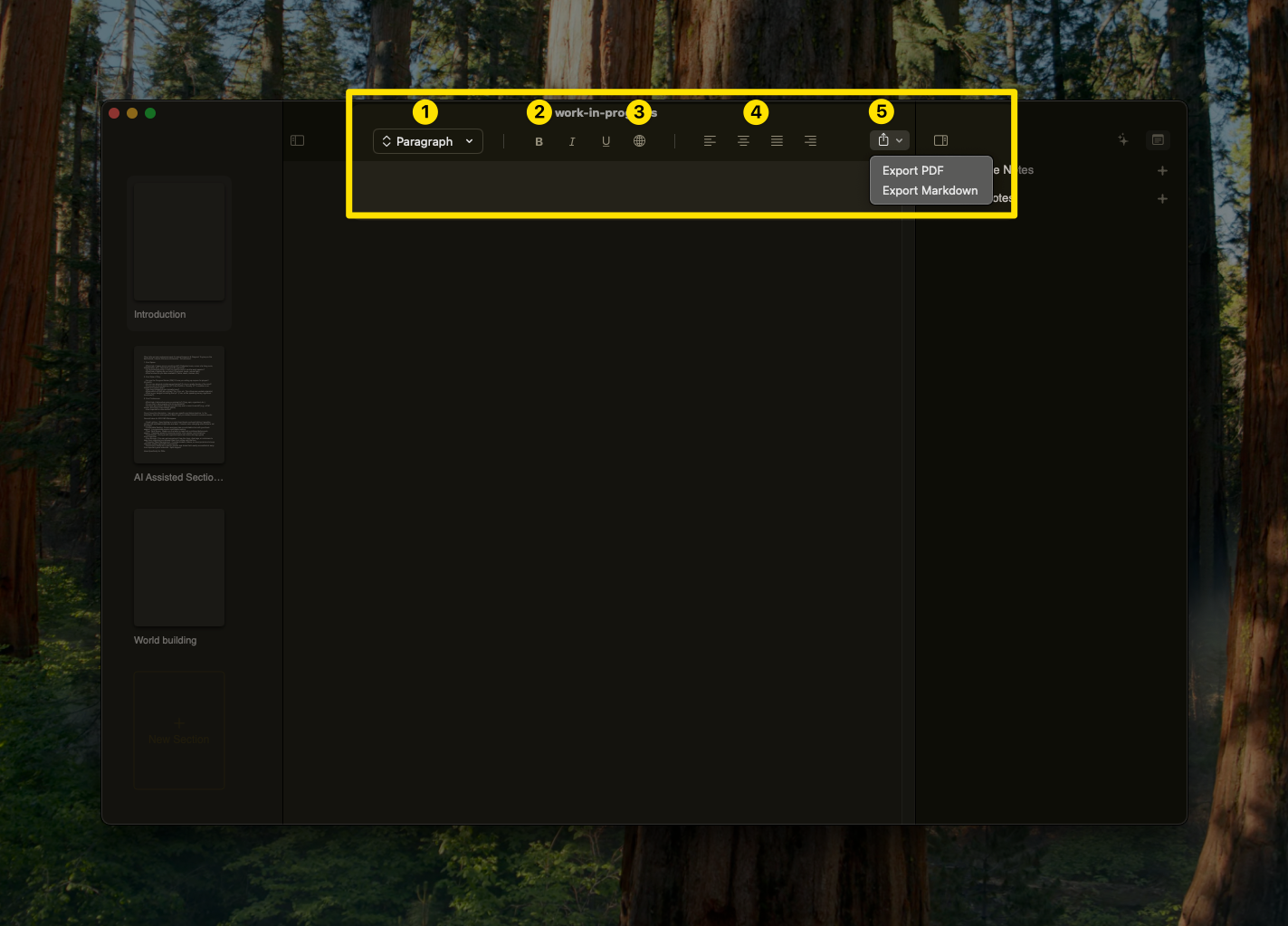
* Heading 1 `⌘ + 1`
* Heading 2 `⌘ + 2`
* Heading 3 `⌘ + 3`
* Paragraph `⌘ + /`
* Bold `⌘ + B`
* Italic `⌘ + I`
* Underline `⌘ + U`
* `⌘` + `⇧` + `3` to insert links
* Link to sections or external resources
* [Learn about internal linking](/user-guides/internal-linking)
* Left, center, right or justify align
* Perfect for headings and quotes
## Navigator
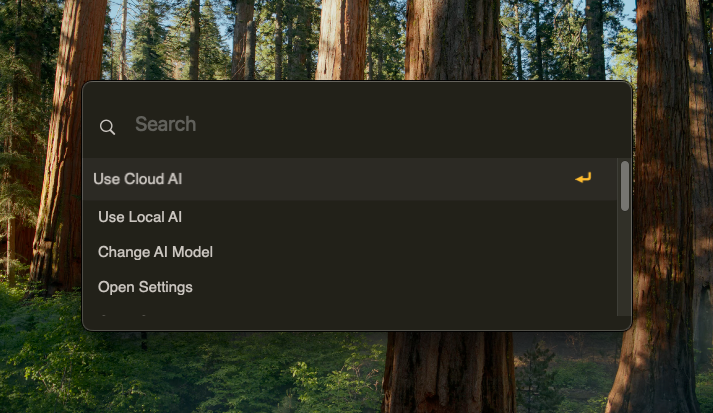
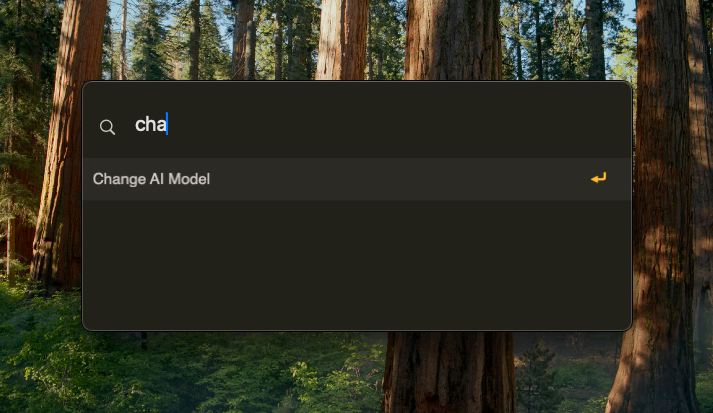
Press `⌘ + K` to access your command center
* Create new sections
* Toggle notes visibility
* Rename or delete sections
* Switch between AI models
* Update writing context
* Adjust preferences
💡 Pro tip: Just start typing to filter commands - the Navigator learns your most-used commands over time!
## Setting context
Share relevant background from your story:
* Previous sections' key events
* Character details for this scene
* World-building elements that matter here
* Specific goals for this section
Help Amber understand the current section you're working on:
* Genre of your current chapter/scene
* Style you're aiming for in this section
* Target audience for this piece
* Current writing stage (draft, revision, etc.)
Amber uses your section's context to provide relevant help:
* Copy suggestions that fit your scene
* Create new related sections
* Add reference notes with key details
* Save ideas for later sections
**You are the writer and world builder. Amber is your tool.** Every feature—from voice recording to AI assistance—exists to help YOU create. Your words, your IP, your creative authority. Amber never writes for you, never pushes AI features, never gets in your way. Just a clean workspace that respects your craft.
Need help?
* Email us at [support@withamber.com](mailto:support@withamber.com)
* Ask the community [Reddit](https://www.reddit.com/r/writewithAmber/)
* Make a feature request [here](https://withamber.com/feedback)
* Make a bug report [here](https://forms.fillout.com/t/7PPzDbBkkjus)
 Amber provides two types of reference material:
**Notes** - Quick reference facts and ideas
Amber provides two types of reference material:
**Notes** - Quick reference facts and ideas

 ## Setting context
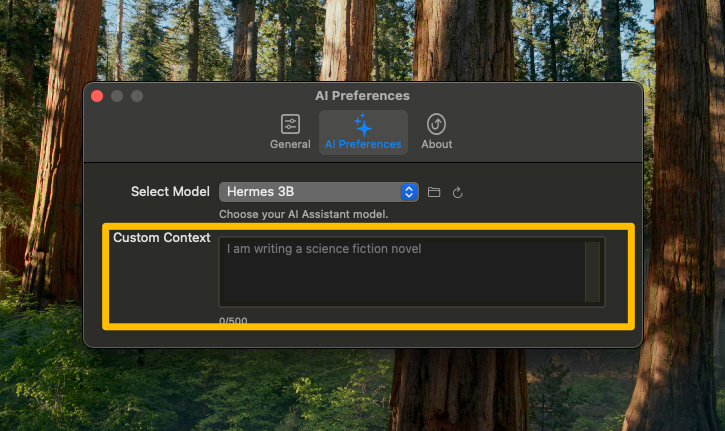
 Help Amber understand the current section you're working on:
* Genre of your current chapter/scene
* Style you're aiming for in this section
* Target audience for this piece
* Current writing stage (draft, revision, etc.)
Help Amber understand the current section you're working on:
* Genre of your current chapter/scene
* Style you're aiming for in this section
* Target audience for this piece
* Current writing stage (draft, revision, etc.)